
Editor Workspace
The editor workspace is the core operating environment of Motor Sound Editor. It is where you manage sound tracks, assign audio assets, and fine-tune how pitch and volume change across traction and braking behavior.
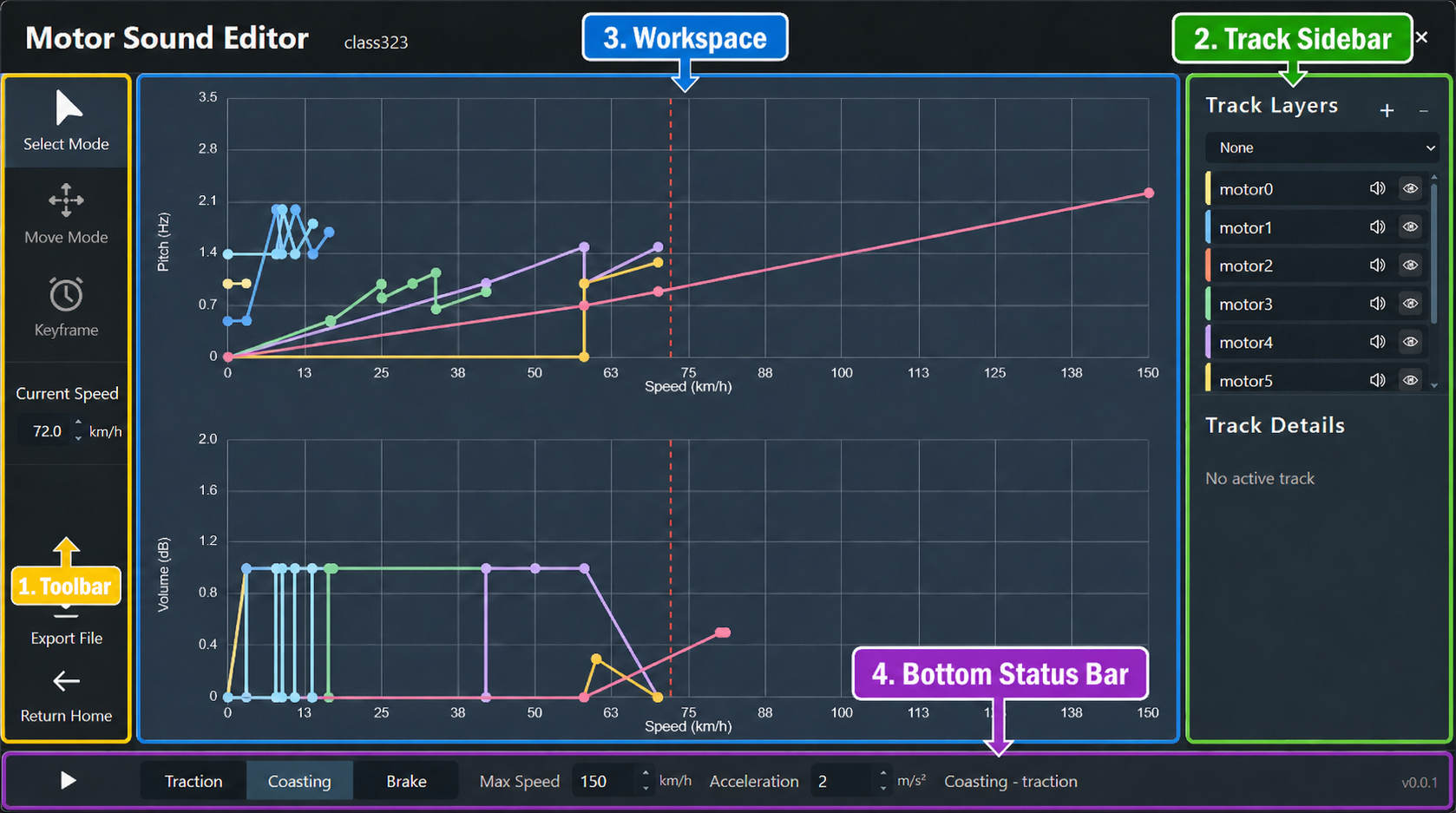
The workspace is divided into four main regions:
- Toolbar: global tool-mode switching and project actions.
- Track Sidebar: the panel on the right for managing tracks, audio files, and track state.
- Main Workspace: the central chart area for curve editing and keyframe work.
- Status Bar: the bottom bar for real-time preview and speed/state control.
1. Toolbar
The top toolbar contains the global controls that affect how you interact with the workspace.
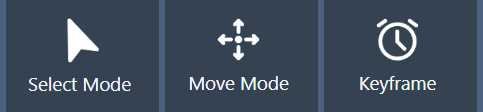
- Tool Mode decides how you interact with curves and keyframes.
- Select is the default mode for choosing keyframes.
- Move lets you drag the selected keyframe and change its position and value.
- Keyframe lets you insert a keyframe with left click or remove one quickly with right click.
- Snap can be enabled temporarily by holding
Shift. The current defaults snap speed to multiples of0.5and values to multiples of0.2.
2. Track Sidebar
The sidebar combines ideas from layer management and mixing so you can organize every motor-sound track in the project.
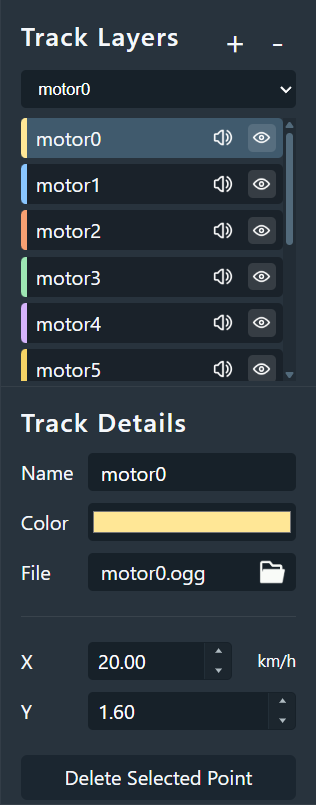
- Track List shows every track in the current project. Clicking a track makes it the active track, and the main chart updates to show that track's curves.
- Asset Assignment lets you assign or replace the local audio file used by a track.
- Track Controls include:
- Show / Hide to control whether the track is visible in the chart.
- Mute to temporarily silence the track during preview.
3. Main Workspace
This is the core area for editing dynamic sound behavior. The horizontal axis represents speed, while the vertical axis represents pitch or volume.
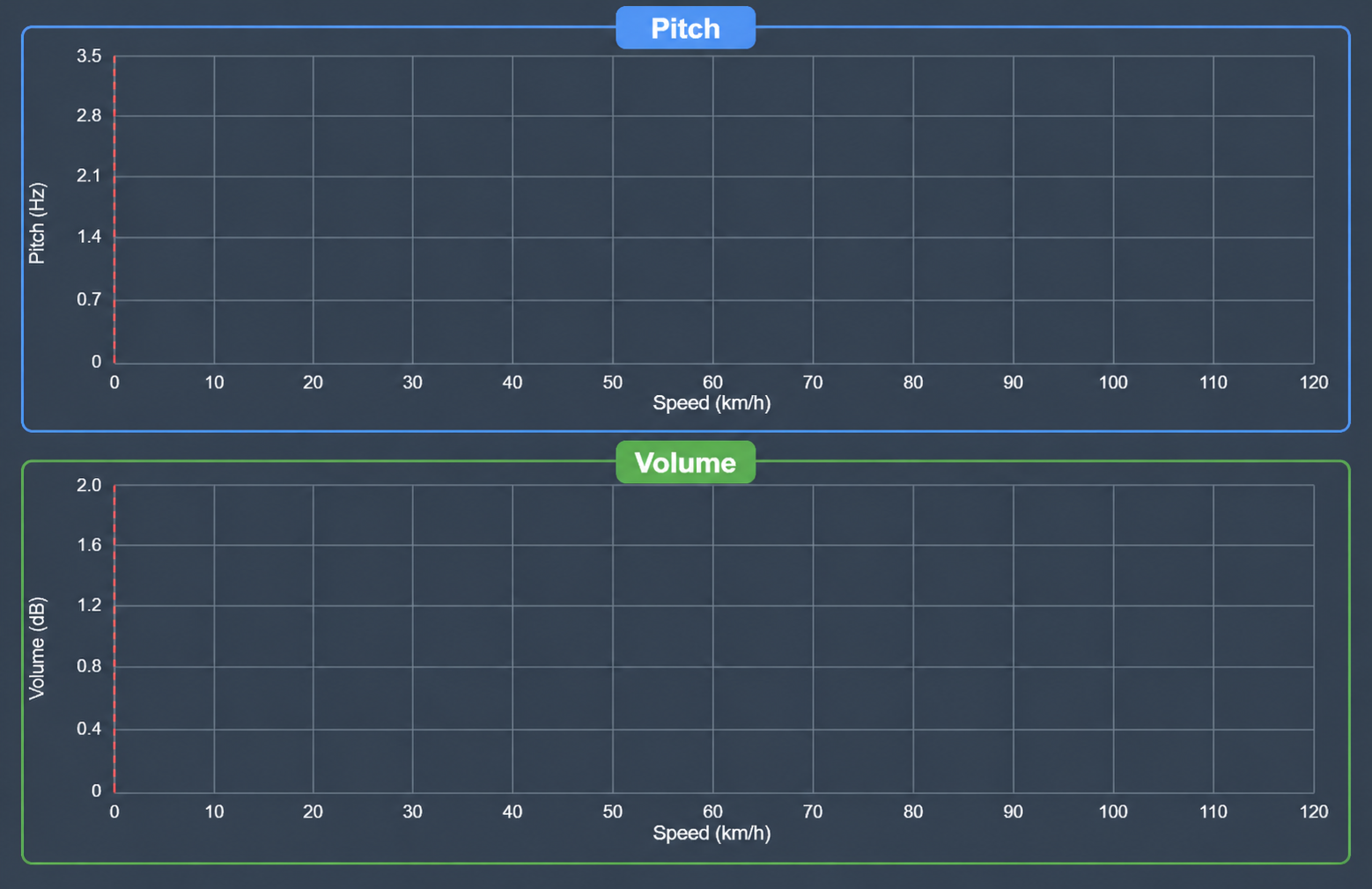
Each track keeps two independent curve environments:
- Traction / Brake for acceleration and braking behavior.
- Pitch curves for playback-rate or frequency change.
- Volume curves for loudness change across the speed range.
At the moment, the data model stores only dedicated Traction and Brake curve sets. During preview, Coasting still uses the traction-side curves.
4. Status Bar
The bottom bar is used for real-time preview and simulator-state control.

- Play / Pause starts or stops the preview engine.
- State buttons switch between Traction, Coasting, and Brake so you can check how the sound transitions between train states. You can also use
WandS. - Current Speed controls the preview speed, making it easier to inspect curve behavior at specific points.