
Export Workflow
After you finish editing tracks and adjusting curves, you can export the current project as a packaged output for the target simulator workflow.
1. Checks before export
Before exporting, make sure that:
- Eligible tracks exist: the export engine only processes tracks that are enabled, unmuted, and assigned an audio asset.
- At least one exportable track is valid: if every exportable track is missing audio, the export step fails immediately.
2. Export dialog
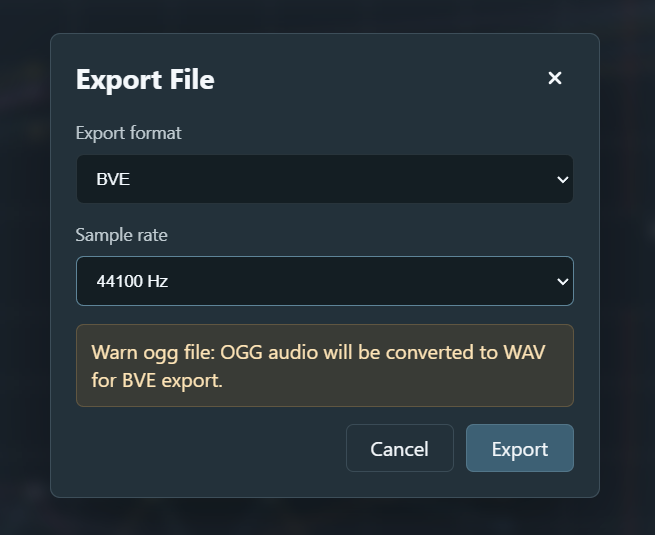
When you click the export button, the app opens the Export File dialog. This is where you choose the output format and audio options.
3. Export format
- BVE is the only active export target today. The app packages the result as a standard ZIP archive, for example
[ProjectName]-BVE.zip. - OpenBVE / MTR still appear in the menu as disabled placeholders for future expansion.
4. Sample rate
You can choose a global sample rate for exported audio.
- Available values are
22050 Hz,32000 Hz,44100 Hz,48000 Hz, and96000 Hz. 44100 Hzis usually the practical default because it balances audio quality and file size well.
5. Format conversion and automatic adaptation
Motor Sound Editor can import both .ogg and .wav audio. During export, the app performs any required conversion automatically so the output matches the target format.
For example, if the project contains .ogg audio and the export target requires WAV, the dialog shows a warning message explaining that OGG files will be converted to WAV during export.
You do not need to transcode files manually. Once the settings look correct, click Export to finish the package.